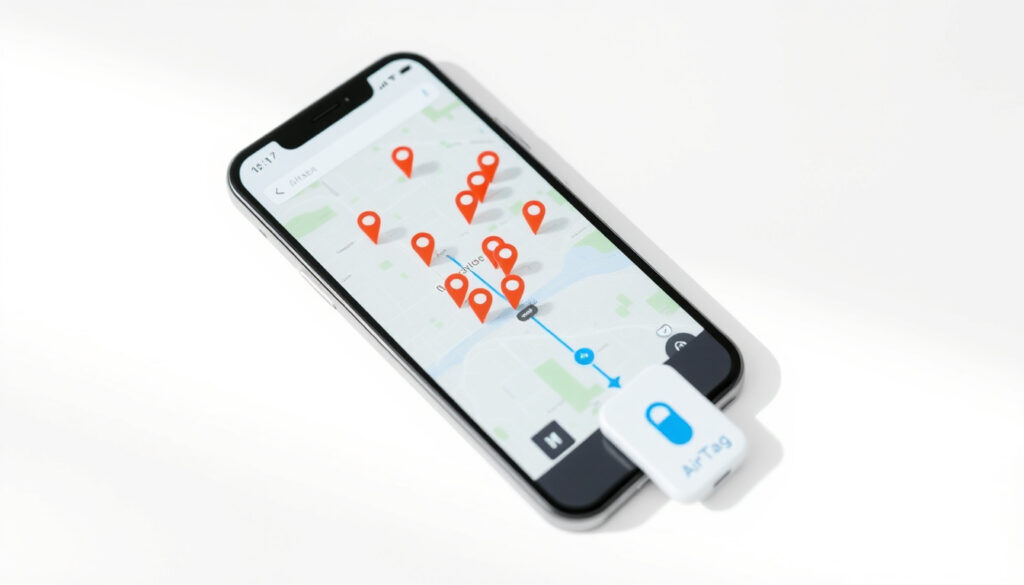
Find My: Complete Guide to Tracking People, Devices & AirTags
Few things cause more stress than a misplaced iPhone or wondering where a family member is after a late night. Apple’s Find My service is designed to ease that anxiety, but setting up location sharing properly isn’t always intuitive. This guide walks through the exact steps to turn on Find My, share your location with family, and troubleshoot the most common hiccups — all based on Apple’s official documentation.
Devices supported: iPhone, iPad, Mac, Apple Watch, AirPods, AirTag and compatible accessories ·
Location sharing with family: Up to 5 family members can share locations via Family Sharing ·
Offline finding: Works for up to 24 hours after device goes offline ·
Find My network size: Hundreds of millions of Apple devices can help locate lost items
Quick snapshot
- Apple’s service to locate devices, items, and people across iPhone, iPad, Mac, Apple Watch, AirPods, and AirTag (Apple Support (official documentation)).
- Uses the Find My network to find devices even when offline (Apple Support (official documentation)).
- Family Sharing enables automatic location sharing with up to 5 people (Apple Support (official documentation)).
- Whether location sharing works without Family Sharing using only iCloud accounts (Apple Support Communities user forum).
- If offline finding works for devices that are not part of the Find My network (Apple Support official documentation).
- Whether turning off Find My prevents the device from being tracked by unknown persons (Apple Personal Safety Guide).
- Apple updated the Family Sharing location-sharing article on July 2026 (Apple Support official documentation).
- iPhone location-sharing article refreshed July 2026 (Apple Support official documentation).
- Family Sharing page updated July 2026 (Apple Support official documentation).
- AirTags and Find My network accessories can be located using the same app (Apple Support official documentation).
- Apple’s Personal Safety guide offers steps to manage location sharing privacy (Apple Personal Safety Guide).
Four key facts, one pattern: Find My’s coverage is vast but setup requires attention to detail.
| Metric | Value |
|---|---|
| Find My devices | iPhone, iPad, Mac, Apple Watch, AirPods, AirTag |
| Family Sharing limit | Up to 5 people (including family organizer) |
| Offline finding period | Up to 24 hours after device is offline |
| Find My network size | Hundreds of millions of Apple devices |
How do I turn on Find My?
How to enable Find My on iPhone
- Open Settings > tap your name > Find My (Apple Support (official documentation)).
- Enable Find My iPhone, Find My Network, and Send Last Location.
- Find My Network lets you locate devices even when they’re offline for up to 24 hours (Apple Support (official documentation)).
- Send Last Location automatically sends the device’s location to Apple when the battery is critically low.
How to enable Find My on iPad
- Same path: Settings > [your name] > Find My (Apple Support (official documentation)).
- Turn on Find My iPad and Find My Network.
How to enable Find My on Mac
- Open System Settings > [your name] > iCloud > Find My Mac (Apple Support (official documentation)).
- Toggle it on, and confirm by entering your Apple ID password.
Every Apple device you own should have Find My enabled before you need it. The five minutes it takes could save you hours of searching — or hundreds of dollars in replacement costs.
If you skip Find My Network, your device can be located only when it’s connected to the internet. Offline finding is the safety net that makes the service useful even after a device goes dark.
The pattern: Enabling Find My early is a small step with large consequences for device recovery.
How do I track a family member on Find My iPhone?
How to share your location with family
- Set up Family Sharing first: Settings > [your name] > Family Sharing (Apple Support (official documentation)).
- Then go to Settings > [your name] > Family > Location Sharing and choose which family members to share with (Apple Support (official documentation)).
- Alternatively, open Find My > People > select a family member > Share My Location (Apple Support (official documentation)).
- Apple also offers an Automatically Share Location toggle so new family members get your location by default (Apple Support (official documentation)).
How to view a family member’s location
- Open the Find My app and tap the People tab (Apple Support (official documentation)).
- All family members who share their location appear on the map with their name.
- Tap a name to see real-time location, directions, and options to notify them or get notified when they arrive/leave.
What to do if you can’t see a family member’s location
- Verify that the family member has shared their location (Apple Support Communities user forum).
- Make sure Location Services is enabled on their device (PCMag (tech publication)).
- Check that the device has internet connectivity; offline devices show a gray circle and last known location.
- If the family member is using iOS 15 or earlier, the path differs: Settings > [your name] > Family Sharing > Location Sharing > Share My Location (Apple Support Communities user forum).
The catch: Once a family member opts out, you cannot override that choice — it’s their device, their privacy.
How do I track someone in Find My?
How to request someone’s location
- Open Find My > People > tap + > Share My Location (Apple Support (official documentation)).
- Enter the person’s Apple ID or phone number.
- Choose sharing duration: One Hour, Until End of Day, or Indefinitely (Apple Support (official documentation)).
How to accept a location sharing request
- The recipient receives a notification and can choose Share or Don’t Share.
- If they share back, their location appears in your People tab.
- You can also start sharing without a request by sending your location first (Apple Support (official documentation)).
How to stop sharing your location with someone
- In Find My > People, tap the person’s name > scroll down > Stop Sharing My Location (Apple Support (official documentation)).
- Alternatively, turn off Share My Location in the Me tab to stop sharing with everyone at once.
Once you stop sharing, the other person is notified. There’s no silent way to cut off location sharing without them knowing, which Apple designs as a safety feature to prevent covert tracking.
The implication: Respecting mutual consent is built into the design — no stealth tracking through official channels.
How do I check who has your Find My?
How to see who you’re sharing your location with
- Open Find My > People tab (Apple Support (official documentation)).
- Every person you’re sharing your location with appears in the list. Their names show the status of their location sharing (sharing, stopped, pending).
- Tap a name to see more details and adjust sharing.
How to remove someone from seeing your location
- Select the person from the People tab.
- Scroll down and tap Stop Sharing My Location (Apple Support (official documentation)).
- You can also manage location sharing from Settings > [your name] > Find My > Share My Location.
The pattern: Visibility into who sees your location is always one tap away; there are no hidden shares.
Why can’t I find my daughter’s location on my iPhone?
Reasons why location may not be visible
- Location sharing must be enabled on the child’s device (Apple Support (official documentation)).
- The child must be part of your Family Sharing group (Apple Support (official documentation)).
- The child’s device must have Find My enabled and Location Services turned on (PCMag tech publication).
- If the device is offline, you will see only its last known location, not live updates (Apple Support (official documentation)).
- Check that the child has accepted the location sharing invitation (if prompted).
How to fix location sharing issues with family
- On the child’s iPhone: Settings > [their name] > Find My > toggle on Share My Location (Apple Support Communities user forum).
- Ensure Family Sharing location sharing is enabled in both the organizer’s and child’s settings (Apple Support (official documentation)).
- Restart the Find My app or the device if settings don’t sync.
- Review time zone and date settings, as incorrect time can cause location data to appear outdated.
How to ensure your child’s device is sharing location
- Open Find My on your child’s device (with their permission) and confirm the Me tab shows Share My Location is on.
- Verify that the child’s device is connected to Wi-Fi or cellular data.
- Check that Find My Network is enabled to allow offline locating (Apple Support (official documentation)).
You can’t see a child’s location if their device is off or in Airplane Mode. That’s by design: Find My respects the device’s power state. For parents, this means relying on the last known location and discussing expectations for when the device must stay on.
How to use the Find My app to locate people, devices, and AirTags
How to locate people
- Open Find My > People tab (Apple Support (official documentation)).
- All contacts who share their location appear on the map. Tap a name to see options: directions, notifications, contact info.
- You can also initiate a temporary one-hour share for a specific outing.
How to locate Apple devices
- Tap the Devices tab to see all your Apple devices linked to your Apple ID (Apple Support (official documentation)).
- Select a device: you can Play Sound, Lost Mode, or Erase This Device.
- Lost Mode locks the device with a passcode and displays a custom message with your contact number.
How to locate AirTags and Find My network accessories
- Tap the Items tab to see AirTags and compatible third‑party items (Apple Support official documentation).
- Select an item to see its location on the map, play a sound, or enable Lost Mode.
- If an AirTag is nearby but out of Bluetooth range, the Find My network uses other Apple devices to update its location.
How to share real-time location with others
- In the People tab, tap + (or your profile icon) and select Share My Location (Apple Support (official documentation)).
- Choose how long to share: one hour, end of day, or indefinitely.
- You can stop sharing at any time, and the recipient will be notified.
The implication: The Find My app consolidates all tracking into one interface — people, devices, and items are just a tab away.
Can someone track your phone location without you knowing?
How to know if someone is tracking you
- Find My will send a notification if an unknown AirTag or Find My accessory is moving with you over time (Apple Personal Safety Guide).
- Check the Items tab for any items that don’t belong to you.
- You can also use Settings > [your name] > Find My to see which devices are signed into your Apple ID.
How to prevent unwanted tracking
- Regularly review the People tab to see who can see your location (Apple Support (official documentation)).
- Turn off Share My Location in the Me tab to stop sharing with all contacts.
- If you suspect an unknown AirTag, use the Find My app to play a sound on it (Apple Personal Safety Guide).
How to turn off Find My for your device
- Go to Settings > [your name] > Find My and toggle off Find My iPhone (Apple Support (official documentation)).
- You will be asked to enter your Apple ID password.
- Turning off Find My disables location tracking, remote lock, and erase — use only if you’re selling or giving away the device.
Find My is a powerful anti‑theft tool, but it also gives Apple’s infrastructure the ability to pinpoint your device’s location. For most users, the trade‑off is worth it — the risk of loss far outweighs the privacy concern. But for those who want maximum privacy, turning off Find My is the only complete solution.
The catch: True privacy requires sacrificing the convenience of recovery; Apple makes no middle ground.
Confirmed facts
- Find My can be enabled in Settings > [your name] > Find My (Apple Support).
- Family Sharing allows location sharing with family members (Apple Support).
- Find My app has People, Devices, and Items tabs (Apple Support).
- You can play sound, use Lost Mode, or remotely erase through Find My.
What’s unclear
- Whether location sharing can be done without Family Sharing but with iCloud accounts only (Apple Communities).
- If offline finding works for devices that are not part of the Find My network (Apple Support).
- Whether turning off Find My prevents the device from being tracked by unknown persons (Apple Personal Safety).
- Whether having Location Services off prevents Find My from accessing the device’s location (PCMag).
“You can find your device even if it’s offline by using the Find My network.” — Apple Support (official documentation)
“When you share your location with family members, they can see your location in the Find My app.” — Apple Support (official documentation)
“Using Find My, you can share your location with friends and family, and locate your Apple devices even if they’re offline.” — PCMag (tech publication)
The implication is clear: Find My offers convenience and safety, but only if both parties actively enable sharing. For families, the setup requires a few minutes of deliberate configuration. For individuals, the privacy controls are robust — but you must know where to look.
For parents and partners, the choice is straightforward: enable Family Sharing, toggle on location sharing for each family member, and check the People tab periodically. The alternative — relying on texts and calls to confirm each other’s whereabouts — is slower, less precise, and often more stressful than using Apple’s built-in tool.
support.apple.com, youtube.com, support.apple.com, youtube.com, youtube.com, discussions.apple.com, youtube.com, youtube.com
For a more comprehensive breakdown, see this detailed Apple Find My guide that covers additional troubleshooting scenarios.
Frequently asked questions
How do I turn on Find My for my iPhone?
Go to Settings > [your name] > Find My and toggle on Find My iPhone, Find My Network, and Send Last Location. (Apple Support)
How do I share my location with a family member?
Set up Family Sharing first, then go to Settings > [your name] > Family > Location Sharing and choose family members. Or use Find My > People > Share My Location. (Apple Support)
Can I track a family member without them knowing?
No — Family Sharing location sharing is opt‑in. Each person must manually enable it on their device. You cannot secretly track someone using Find My. (Apple Support)
Why can’t I see my daughter’s location?
Possible reasons: her device has Find My off, Location Services disabled, she hasn’t shared location, the device is offline, or she is not part of your Family Sharing group. (Apple Communities)
Does Find My work when my iPhone is turned off?
In most cases, no — if the device is powered off, Find My cannot transmit its location. However, if you enabled Find My Network, it can use Bluetooth to relay its last location when the battery is critically low, but not when the device is off. (Apple Support)
Can someone track my location without my permission through Find My?
Find My will notify you if an unknown AirTag or Find My accessory is moving with you. You can also check the People tab to see who can see your location. Location sharing always requires explicit consent. (Apple Personal Safety Guide)
More related posts
 Salvos Near Me – Find Stores Hours and Donation Guide
 Harlan Coben: Books, Netflix Shows, and What’s Next
 Emily Alyn Lind: The Babysitter Actress’s Family and Career
 Christopher Schwarzenegger: Bio, Weight Loss, Career & Family
 Hey Hey It’s Saturday: History, Hosts & What Happened
 Nicki Minaj: Citizenship, Followers, Family, Feuds, and Net Worth
 Bunnings Manly West: Hours, Location & Services Guide
 Cast of Freakier Friday (2025): Full List and Stories
